- ListenIdentify noise and uneven levels
- RepairApply only the processing needed
- BalanceCheck dialogue against music
Bad audio is noticeable instantly, often more than imperfect video. These five techniques cover the most common problems in a Premiere Pro edit: uneven levels, background noise, music competing with dialogue, muddy tone, and abrupt cuts. Apply only what the recording needs, then judge the result in the full mix.
1. Set Levels and Normalize
Peak level and integrated loudness are different measurements. Leave headroom on peaks (-3 dBFS is a reasonable starting point), and use the loudness spec from your client or platform for the final mix. No single LUFS number fits every delivery.
Normalize with Audio Gain
- Select the clip in the timeline.
- Right-click and choose Audio Gain.
- Choose the peak normalization option and set it to -3 dB.
- Click OK.
Match loudness with Essential Sound
- Select the clip and open the Essential Sound panel.
- Tag it as Dialogue, Music, SFX, or Ambience.
- Use Auto-Match as a starting point.
Normalization evens out clips. It does not replace a loudness check on the finished mix.
2. Reduce Background Noise
- Tag the clip as Dialogue in Essential Sound.
- Open Repair and raise Reduce Noise gradually.
- Compare with the untreated clip at a similar listening level.
- Back off if speech turns metallic or loses detail.
This works on steady background noise. It won't fix room echo or overlapping voices, and pushing it too far makes dialogue sound underwater. Noise-print capture is an Audition workflow; Premiere's Adaptive Noise Reduction has no Capture Noise Profile control.
3. Duck Music Under Dialogue
Ducking lowers music automatically while someone is speaking.
- Put dialogue and music on separate tracks.
- Tag the speech clips as Dialogue in Essential Sound.
- Select the music clips, tag them as Music, and enable Ducking.
- Set the options:
- Duck Against: Dialogue
- Sensitivity: which speech triggers ducking
- Reduce By: how far the music drops; start gently
- Fades: how quickly the music moves
- Click Generate Keyframes, play back, and adjust.
Light ducking, around -6 to -8 dB, usually sounds more natural than -15 dB or more. For precise control, add volume keyframes by hand before and after each line and ramp the music down instead of cutting it. See Adobe's automatic ducking tutorial.
4. Clean Up Tone with EQ
Apply the Parametric Equalizer from Effects > Audio Effects, then drag points on the curve.
| Range | What lives there | Typical move |
|---|---|---|
| Below 80 Hz | Rumble, handling noise | High-pass filter on dialogue |
| 200-300 Hz | Muddiness | Small cut |
| 2-4 kHz | Speech clarity | Slight boost on dialogue; cut in music |
| Above 8 kHz | Air | Gentle high shelf |
On music, cut the range where dialogue sits so the two don't compete, and keep low-end boosts modest. EQ should clarify a recording, not change its character.
5. Smooth Audio Transitions
Avoid hard audio cuts that pop or jump.
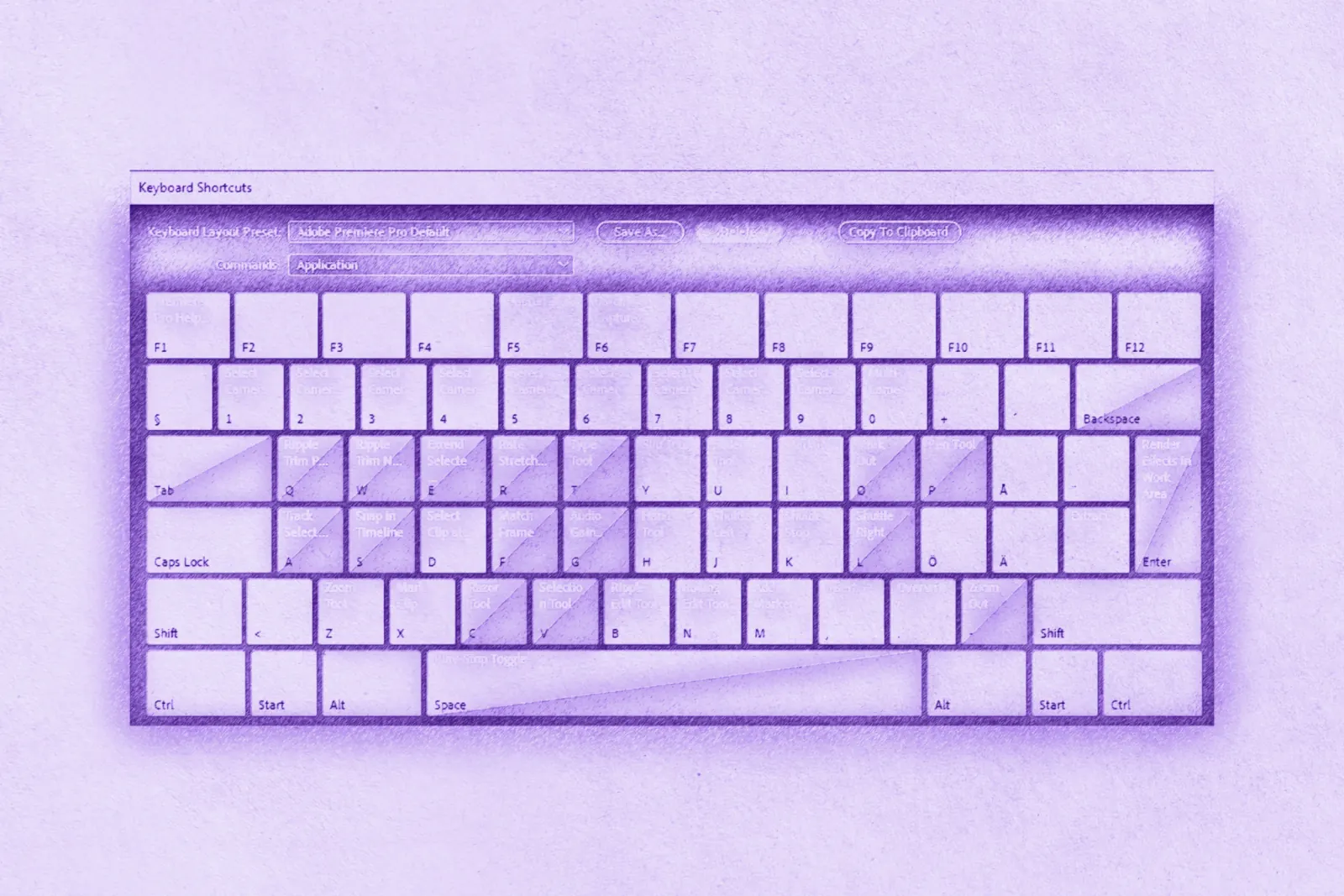
- Crossfade: select an edit point with enough handles, then press Ctrl+Shift+D (Cmd+Shift+D on Mac) to add the default transition, or apply Constant Power from the Effects panel. Adjust the length to taste.
- Manual fades: keyframe a fade-out on the outgoing clip and a fade-in on the incoming one so they overlap.
- J-cut: the next shot's audio starts before the picture cuts.
- L-cut: audio carries on after the picture cuts, useful for reaction shots.
- Pre-roll: fade music or ambience in a few seconds before a scene to set the space.
Order of Operations
- Organize: sync audio, label clips, set up submixes.
- Clean up: normalize levels, reduce noise, high-pass dialogue.
- Enhance: EQ for clarity, then compression and de-essing if needed.
- Mix: balance dialogue against music, set up ducking, add sound effects.
- Finish: check final levels and loudness, then export stems.
Final Mix Checklist
- No unintended clipping; peaks and loudness meet the delivery spec.
- Dialogue stays clear over music.
- No pops or abrupt cuts.
- Noise is reduced without sounding over-processed.
- Levels are consistent from scene to scene.
- Room tone fills gaps instead of dead silence.
- Audio perspective matches the shot (no close-mic sound on a wide shot).
- Compression hasn't flattened all the dynamics.
Listen on good headphones or monitors, then on earbuds, phone or laptop speakers, and a car stereo if you can.