- NavigateReview with J, K, and L
- MarkSet In and Out points
- EditChoose the right trim or insert
These ten shortcuts cover the actions you repeat most: reviewing footage, marking a selection, cutting, removing clips, and undoing a change.
Check Your Keyboard Preset
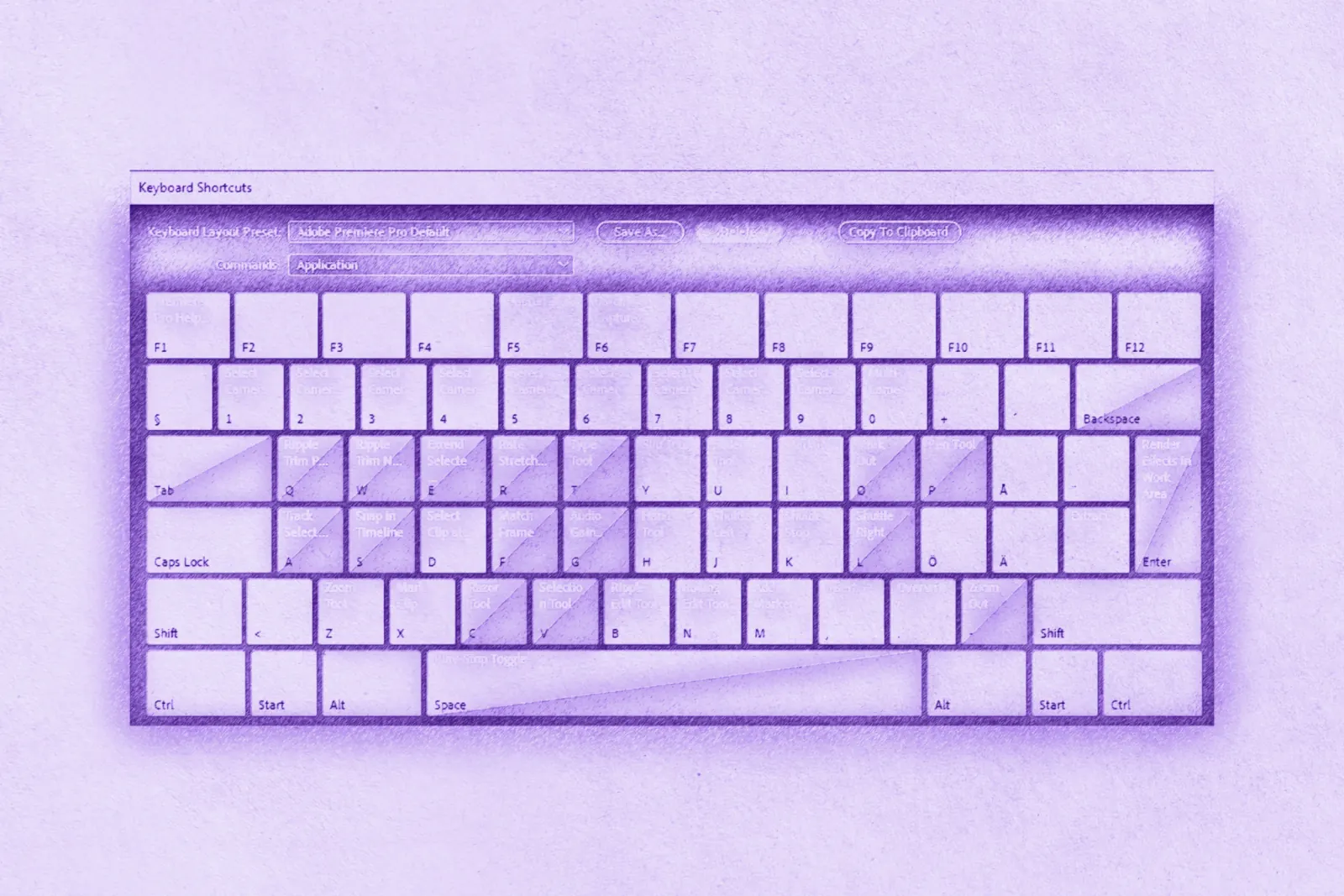
The bindings below are from Adobe's default preset. Custom presets, keyboard layouts, panel focus, and text-entry fields can change what a key does. Confirm each command in your Keyboard Shortcuts dialog, and keep Adobe's default shortcut reference nearby.
The 10 Shortcuts
| Command | Windows | macOS |
|---|---|---|
| Reverse playback / Pause / Forward playback | J / K / L | J / K / L |
| Play/Pause | Spacebar | Spacebar |
| Set In Point / Set Out Point | I / O | I / O |
| Ripple Trim Previous / Next Edit to Playhead | Q / W | Q / W |
| Add Edit | Ctrl + K | Cmd + K |
| Ripple Delete | Shift + Delete | Shift + Forward Delete |
| Lift | ; (semicolon) | ; (semicolon) |
| Default video transition | Ctrl + D | Cmd + D |
| Default audio transition | Ctrl + Shift + D | Cmd + Shift + D |
| Undo / Redo | Ctrl + Z / Ctrl + Shift + Z | Cmd + Z / Cmd + Shift + Z |
Playback and Marking
Use J, K, and L to review footage. Press J or L again to play faster in that direction; press K to stop. Spacebar toggles playback.
Press I and O while playing to mark the start and end of a selection. Use marked ranges to build sequences and subclips, and to set what Lift removes.
Trimming and Cutting
Park the playhead where you want the cut and press Q to trim the previous edit to it, or W to trim the next edit. Use the arrow keys to step frame by frame before trimming. You don't need to switch tools.
Add Edit (Ctrl/Cmd + K) splits the clip at the playhead.
Q, W, and Add Edit change sequence timing. Check track targeting and sync locks first.
Ripple Delete vs. Lift
All three remove material. The difference is what happens to the space.
- Ripple Delete removes the selected clip and closes the gap.
- Plain Delete/Clear removes the selected clip and leaves the gap.
- Lift (;) removes the marked In/Out range from targeted tracks and leaves a gap, so the sequence length and downstream sync stay the same.
Transitions and Undo
Ctrl/Cmd + D applies the default video transition, usually Cross Dissolve. Ctrl/Cmd + Shift + D applies the default audio crossfade. Listen before adding one: not every audio cut needs a crossfade.
Undo and redo make it safe to try an edit. The History panel shows the available undo steps. Save a project version before major changes.
Practice Plan
Learn the shortcuts in groups and use them in real projects:
- Playback and marking: J, K, L, Spacebar, I, O.
- Trimming and cutting: Q, W, Add Edit.
- Removing and transitions: Ripple Delete, Lift, default transitions.
To judge whether a shortcut helps, time a repeatable task before and after you learn it.